Pratetapan pemberitahuan
Apakah pratetapan pemberitahuan?
Pratetapan pemberitahuan membenarkan anda untuk menyimpan konfigurasi pemberitahuan sebagai templat dan menggunakannya dengan pantas kepada simbol atau syarat berbeza. Daripada anda menetapkan parameter pemberitahuan yang sama secara manual setiap kali, anda boleh mencipta pratetapan sekali dan menggunakannya berulang kali dengan hanya satu klik.
Ciri ini berguna untuk pedagang yang:
- Mahu mengekalkan templat pada satu tempat
- Memerlukan persediaan pantas dengan tetapan notifikasi khusus
- Menggunakan syarat yang sama merentasi berbilang simbol
Nota: Anda boleh menyimpan sehingga 5 pratetapan pemberitahuan.
Apa Yang Akan Disimpan dalam Pratetapan?
Apabila anda menyimpan satu pratetapan pemberitahuan, tetapan berikut akan disimpan:
Syarat Tetapan
Untuk setiap syarat dalam pemberitahuan anda:
- Siri (jika menggunakan penunjuk atau strategi)
- Plot siri (jika berkenaan)
- Operator (rentas, rentas ke atas, rentas ke bawah, lebih besar daripada, dll.)
- Jalur termasuk:
- Moving average dengan plot mereka
- Penunjuk dengan plot mereka
- Nota: Ruangan nilai dan alatan lukisan TIDAK disimpan dalam pratetapan
- Resolusi/Rangka masa (jika dijelaskan)
Gelagat Pemberitahuan
- Mencetuskan frekuensi
- Luput - disimpan sebagai perbezaan masa antara tarikh mungkin minimum dan tarikh pilihan anda, atau ditandakan sebagai terbuka
Lalai
- Nama Pemberitahuan (hanya jika berbeza dari lalai)
- Templat mesej (hanya jika berbeza dari lalai)
Notifikasi
- Semua tetapan notifikasi dari tab Notifikasi, termasuk:
- Notifikasi dalam applikasi
- Tunjukkan notifikasi sorak
- Hantar e-mel
- Mainkan bunyi
- Hantar teks biasa
- Nota: URL webhook TIDAK disimpan dalam pratetapan
Bagaimana mencipta pratetapan
Mengkonfigurasikan pemberitahuan anda dengan tetapan dikehendaki:- Laksanakan syarat (harga, penunjuk, strategi)
- Konfigurasikan mesej anda
- Konfigurasikan tetapan notifikasi (tekanan mudah alih, e-mel, bunyi)
- Klik pada butang pratetapan → Simpan pratetapan pemberitahuan...
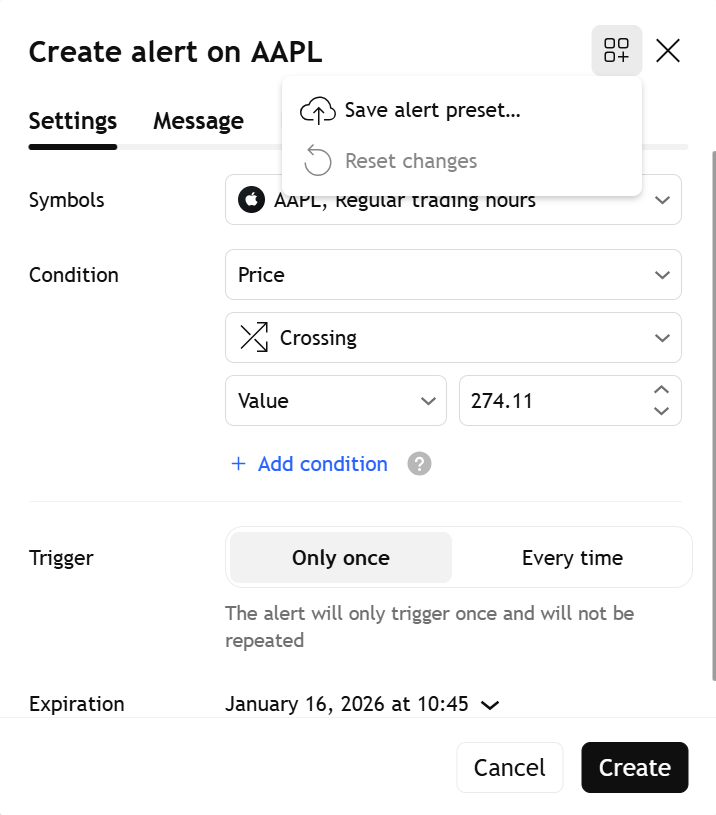
- Masukkan nama yang boleh difahami untuk pratetapan anda
- Pilih tetapan untuk disimpan menggunakan kotak semak (jika tiada dipilih, semua kotak semak akan dipilih secara lalai)
- Klik "Simpan"
- Buka dialog cipta pemberitahuan
- Klik pada menu lungsur turun pratetapan
- Pilih pratetapan yang anda simpan dari senarai
- Pratetapan dilaksanakan akan diserlahkan dalam warna hitam
- Cipta pemberitahuan
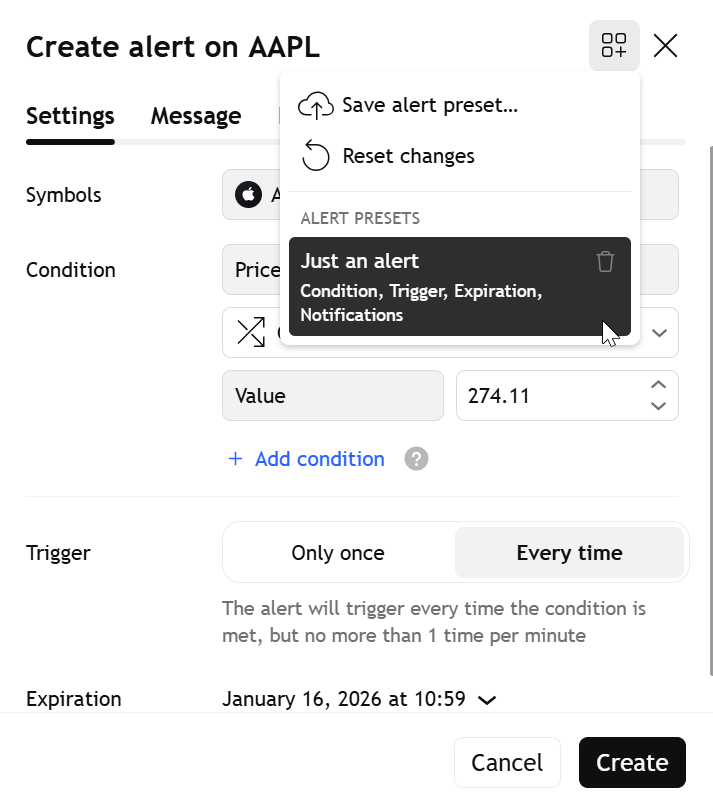
Set Semula Perubahan
Untuk menyahaktifkan pratetapan dilaksanakan dan kembali kepada tetapan lalai (kembali kepada semasa anda membuka dialog pemberitahuan), klik "Tetapkan semula perubahan".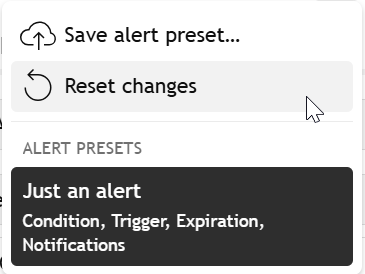
Padam Pratetapan
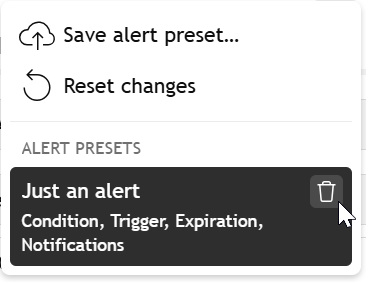
Untuk membuang pratetapan dari perpustakaan anda:- Klik ikon tong sampah di sebelah pratetapan dalam menu lungsur turun
- Pratetapan akan dipadamkan secara kekalPenting: Anda tidak boleh mengedit pratetapan yang sudah dicipta. Untuk mengubah tetapan, anda perlu mencipta pratetapan baharu dengan parameter dikemas kini.